
 |
Related Topics: |  |
 |
 |
|
 |
 |
 |
If you configure XFRACAS to track incidents and part repairs/replacements for specific serialized systems, you will be able to capture time/usage data that can be used for reliability data analysis.
There will always be one primary time/usage metric (Time Metric 1) and you can choose to enable up to two additional fields if desired (Time Metric 2 and Time Metric 3). By default, these fields are called "System Hours," "Number of Starts" and "kW Run Hours," but you can record any metric(s) of interest (hours, miles, kilometers, cycles, etc.) and use the Resource Manager to modify the interface labels.
The Customer Support page for a serialized system displays the latest reported value(s) for the time/usage metric(s) enabled for the entity. This information can be obtained from a) incidents reported for the serialized system, b) manual entry via the Customer Support interface and/or c) usage data imported from an external source.
Click the link to see the history of all usage reports
for that particular system. Click  to manually enter new information.
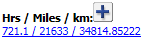
For the primary metric only (Metric 1), the Customer Support page also displays the estimated usage at today's date. If there are at least two reported values for the system's actual time/usage, the estimate is calculated as follows:
(Commission Date - Today's Date) x Average Usage per Day
To estimate the average usage per day, XFRACAS fits a slope to the reported time/usage values. However, if the estimate exceeds the maximum possible per day (which is specified in the "Incident - Max Units/Day - Time Metric 1" preference), the max per day will be used instead.
This estimate is used for CSI MTBF calculations (discussed below) and may also be incorporated into custom reports and charts if applicable.
By default, users will be prompted to enter the time/usage metric(s) in each incident report for a serialized system. Alternatively, you can configure XFRACAS to automatically populate the primary metric (Metric 1) when the following preferences and inputs are available:
Preferences:
Incident - Auto-populate Time Metric 1 is True
Incident - Max Units/Day - Time Metric 1 is a number greater than 0
Incident:
Serial Number has been entered
Occurrence Date has been entered
Customer Support:
Commission Date has been entered and it is earlier than the incident's Occurrence Date
If the "System Down Event" field (a special Detail field for incidents) is not enabled for the entity, the calculation is as follows:
(Commission Date - Occurrence Date) x Max Units/Day
If the "System Down Event" field is enabled, the downtime is obtained from any incidents for the serialized system where this check box is selected. For each incident, the time down is the Repair Date - Occurrence Date (or if a repair has not been entered, it is Today's Date - Occurrence Date). The calculation to auto-populate Metric 1 is:
(Commission Date - Occurrence Date - Time Down) x Max Units/Day
You can also configure XFRACAS to automatically calculate a time metric based on the value for another metric. For example, if Metric 1 is miles, you can configure Metric 2 as kilometers and calculate it automatically based on the value entered for miles (t1 * 1.60934). The behavior depends on the following preferences and what the user enters in the incident page.
Incident - Display Time Metric [2/3]
Incident - Always Auto-calculate Time Metric [1/2/3]
Incident Time Metric [1/2/3] Formula
It is important to be aware that the Preferences page does not prevent you from saving incompatible settings or invalid formulas, which may result in unexpected behavior for the metric fields in incidents. Note that:
If the formula is blank, the field saves the entered value, regardless of whether "Auto-calculate" is true.
If the formula is not blank and "Always Auto-calculate" is true, the field attempts to calculate the value. If the formula is invalid, the calculated value will be 0.
If the formula is not blank and "Always Auto-calculate" is false, the field EITHER saves the entered value OR attempts to calculate if a value was not entered. For example, this configuration may be appropriate if some incidents have usage reported in Metric 1 and other incidents have usage reported in Metric 2.
Also note that:
Operands and operators must be separated by spaces.
Valid operators are * / + and -.
A valid operand can be a number, a time metric field (t1, t2 or t3) or a list of parameters (e.g., [t1,t2]) that will be checked in order until a parameter is found that is not 0.
A metric's formula should not refer to itself. For example, the formula for Metric 1 should not be t1 * 20.
A metric's formula should not refer to a metric that is not enabled.
A metric's formula should not refer to a metric that is already set to auto-calculate. For example, if the formula for Metric 2 is t1 * 30 (e.g., 30 miles for every hour), do not set the formula for Metric 3 as t2 * 1.60934 (e.g., 1.60934 km for every mile). Instead, set it to t1 * 48.202 (e.g., 48.202 km for every hour).
The Customer Support page provides the option to display some very basic reliability metrics based only on the data from a single serialized system. If the preferences are enabled, the MTBF metrics are calculated as follows:
Number of Incidents ÷ Total Time/Usage
Although we recommend to use Weibull++ or RGA for more robust reliability analysis whenever possible, the CSI MTBF metrics may be used, for example, if you need to monitor a specific machine in a manufacturing line to determine whether it is meeting the contracted MTBF.
The CSI page displays two values for each metric (e.g., MTBF / MTBFE). The first is based on the reported usage for Metric 1; the second is based on the estimated usage.
Since an incident may be a "chargeable failure" or a "non-chargeable failure" depending on the Incident Category, there's a choice of four metrics that can be displayed:
CSI - Display MTBF (mean time between failures) and CSI - Display MTBCF (mean time between chargeable failure incidents) are the same metric
CSI - Display MTBNCF is the mean time between non-chargeable failure incidents
CSI - Display MTBI is the mean time between incidents (both chargeable and non-chargeable)
For more robust reliability analysis, you can use the Synthesis Data Warehouse (SDW) in ReliaSoft Weibull++/ALTA or RGA desktop applications to extract data from XFRACAS that can be used for either life data analysis or reliability growth analysis.
For information about using the desktop applications to extract the data and transfer to an analysis folio, please see Extracting Data from XFRACAS in the desktop application's help files. The extraction process for life data analysis works as follows:
Select Parts - The user selects one part or multiple parts to be analyzed together in the same data set.
Get Data from Serialized Incidents
The SDW identifies all serialized systems that contain the specified part(s).
For each serialized system, the SDW finds all "serialized incidents" and orders by occurrence date to build a timeline.
The SDW finds all incidents within the timeline in which the specified part(s) were repaired or replaced.
The SDW checks the "Failure Type" for the repair and the "Incident Category" for the incident:
If both are chargeable (e.g., repair is "Primary Failure" and incident is "Component Failure"), then the incident is treated as a Failure (F).
If one or both are non-chargeable (e.g., repair is "Primary Failure" but the incident is "ASP Error"), then the incident is treated as a Suspension (S).
Get Data from Part Incidents
The SDW finds all "part incidents" in which the specified part(s) were repaired or replaced.
The SDW checks the "Failure Type" for the repair and the "Incident Category" for the incident (as described above) to determine if the incident will be treated as a Failure (F) or Suspension (S).
© 1992-2018. HBM Prenscia Inc. ALL RIGHTS RESERVED.
 |
E-mail Link |