
XFRACAS is highly customizable, so many elements of the interface may vary according to the settings chosen by the system administrator. Most pages will, however, contain the same basic elements, as shown next.
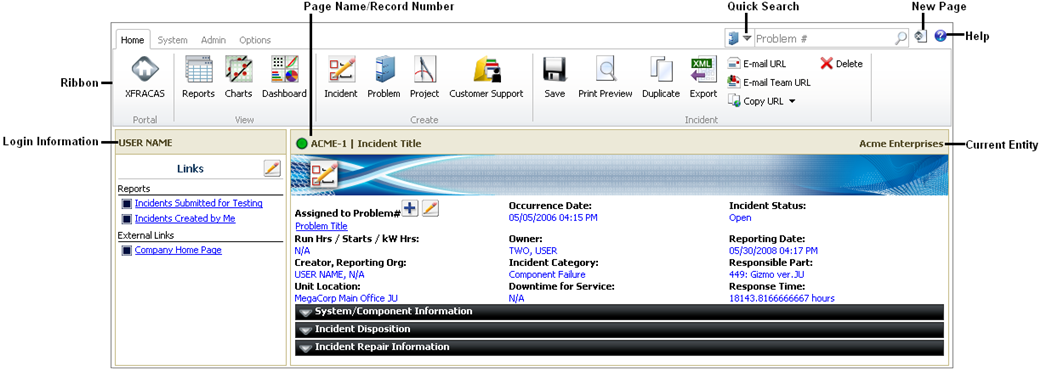
The ribbon at the top of the page provides access to XFRACAS pages and provides commands for working in those pages. This replaces the menus of previous versions of the software.
Quick Search allows you to open an existing record. Select the type of record (problem, incident, action, customer support by record number, failure analysis by record number, customer support by serial number, project or failure analysis by RMA number) from the drop- down list and type the number of the record, the serial number or the RMA number. The record number may include the prefix for the entity that it is associated with (e.g., E1-112) except in the case of actions, which do not include an entity prefix in their IDs. XFRACAS searches in the following order:
Searches for an exact match in the current entity. If no match is found, then:
Adds the prefix used by the current entity and searches for a match. (Note that this step is skipped when searching for an action.) If no match is found, then:
Searches for an exact match in all entities to which you have access.
For instance, if your current entity is Entity 1, using the prefix "E1-," and you search for an incident by entering the record number "1," the system would first search for "1." Because the incidents in the current entity have a prefix, no match would be found. The system would then add the current entity prefix and search for incident "E1-1". If there is no incident with that number, the system would search all of your entities for "1." If one of your entities does not use a prefix, this search would find incident 1 in that entity.
New Page opens a new window or tab to the XFRACAS Portal page.
Help opens the help for the current page.
Login Information displays the name of the user who is currently logged in to the system.
Links displays a list of private and system/company-wide links to web pages, templates or internal documents that may be useful to the user. The links will appear under their assigned link type (e.g., Internal), if any. Users can post a link by clicking the Edit Links icon,  , in the upper right corner. Only users with specific permissions can add system/company-wide links. All other users can add only private links, which will be visible only to them in the Links area.
Users can update or remove a link that they created by clicking the square next to the link. Only authorized users can edit and/or remove a link created by another user. You can tell if you have permission to edit a link by looking at the square that appears beside it. If the square is solid, you can edit the link. If the square is an outline, you do not have permission to edit the link.
Page Name/Record Number displays the name of the current page or, for record pages, the number of the record being viewed. (This number is also displayed in the title bar of the browser.) If changes have been made on the page and not yet saved, the status indicator will be red. If all changes have been saved, the status indicator will be green.
The Current Entity shows the entity that you are currently working with and, unless you are working with an existing record, allows you to select the entity you want to work with. An entity is a complete setup of XFRACAS. For example, your company might have several different business units, each of which has different needs and/or different terminologies in place. Each business unit can have its own setup of XFRACAS, or entity, configured to meet the needs of that unit. Please note that the fields that appear in each type of interface will vary depending on the current entity. When you are creating a record (i.e., CSI, incident, FA, problem, project or action), it is important to remember that once you have created the record, you will not be able to change the entity that it is associated with.
© 2006-2017. HBM Prenscia Inc. ALL RIGHTS RESERVED.